How to Use Task Recorder in AX7 to Create Documentation, User Help, and Test Scripts
Note (2025): This post was written in 2017 for the "New Dynamics AX" (AX7), which has since become Dynamics 365 Finance & Supply Chain Management. Task Recorder remains a core feature of the platform. The Business Process Modeler (BPM) in LCS is being phased out as part of the broader LCS transition, but Task Recorder itself continues to be used for documentation, training, and test automation — including integration with the Regression Suite Automation Tool (RSAT).
The New Dynamics AX provides powerful functionality around business process modelling, user documentation, training preparation, and helping developers build test scripts based on real usage scenarios.
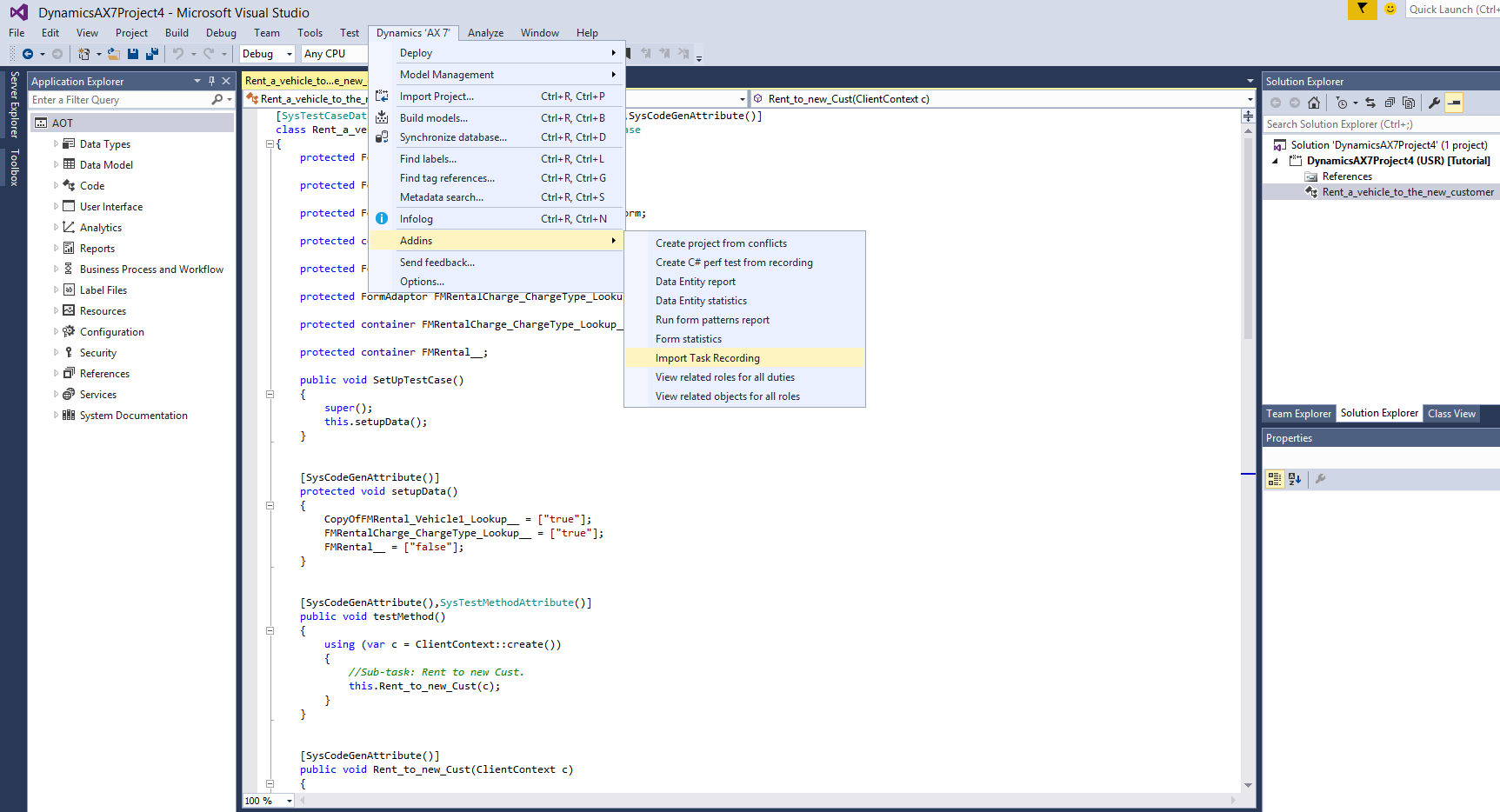
All of this is made possible by the Task Recording feature, where the system tracks and records all user interactions with the product UI.
Getting Started
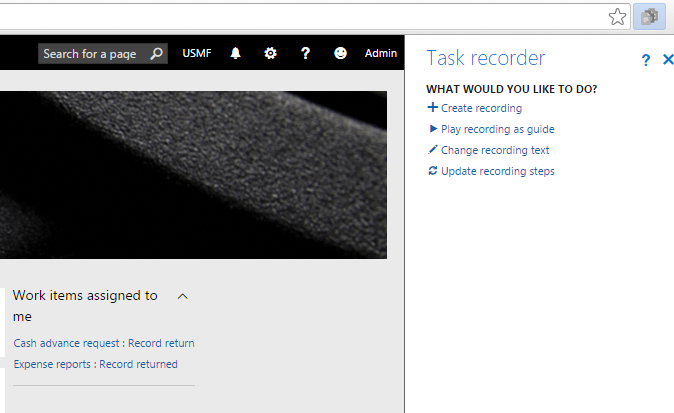
To activate Task Recorder, click the Settings button in the top-right corner.
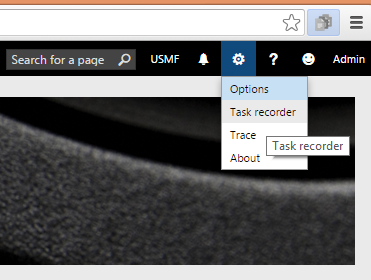
Click Create recording to start a new recording. The process is straightforward, and there is also a good step-by-step guide available on the documentation site.
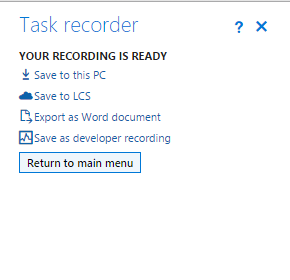
After you finish recording, you can save it in two formats (XML or AXTR) — either locally on your computer or to the cloud.
Connecting to the LCS Business Process Library
Now, a few interesting things that were not immediately obvious from the documentation and required some digging to find answers.
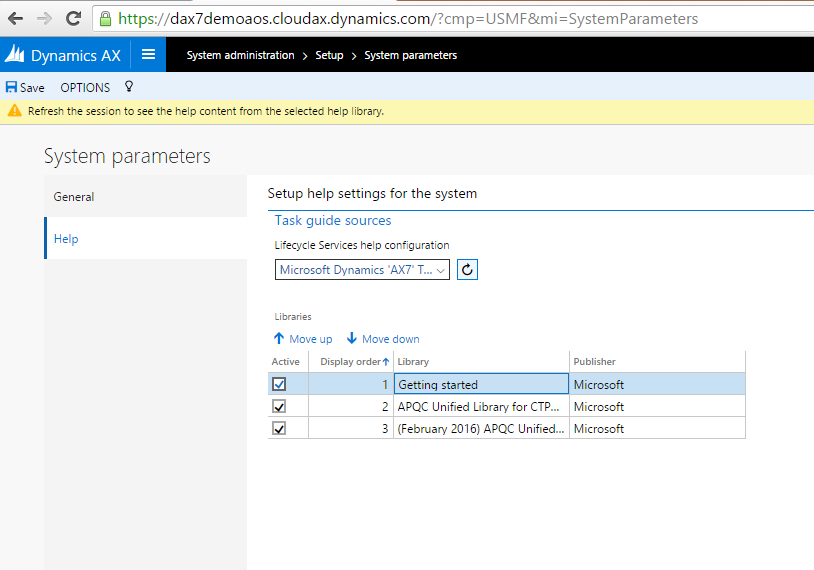
How to connect your LCS Business Process Library to your environment so that recordings are linked to the user help menu and Business Process Modeler.
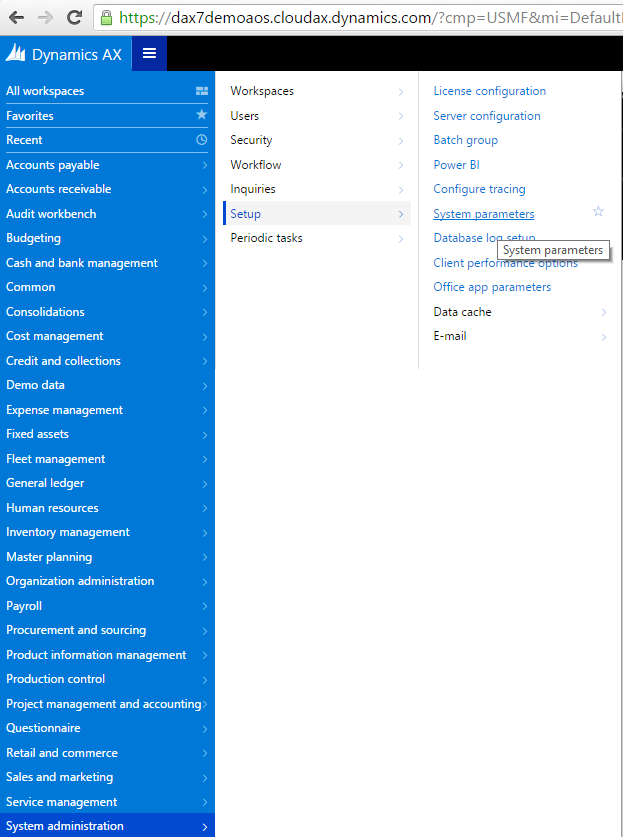
To do this, go to System administration > Setup > System parameters.
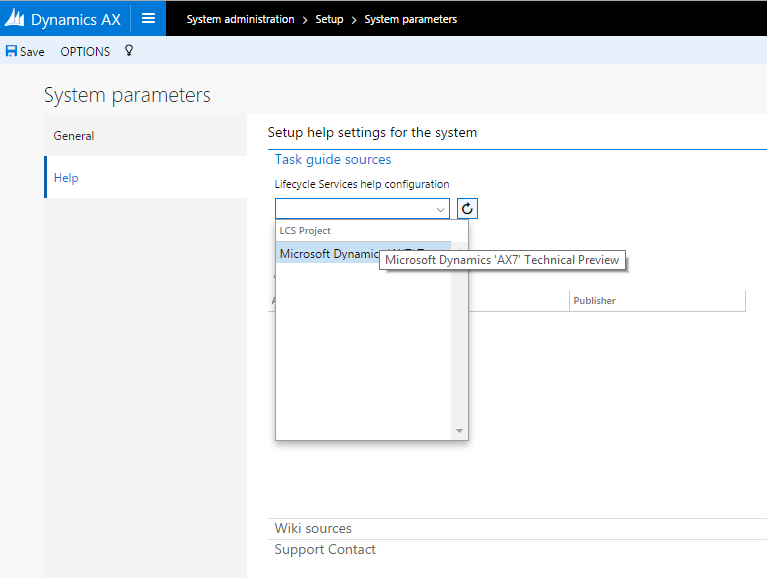
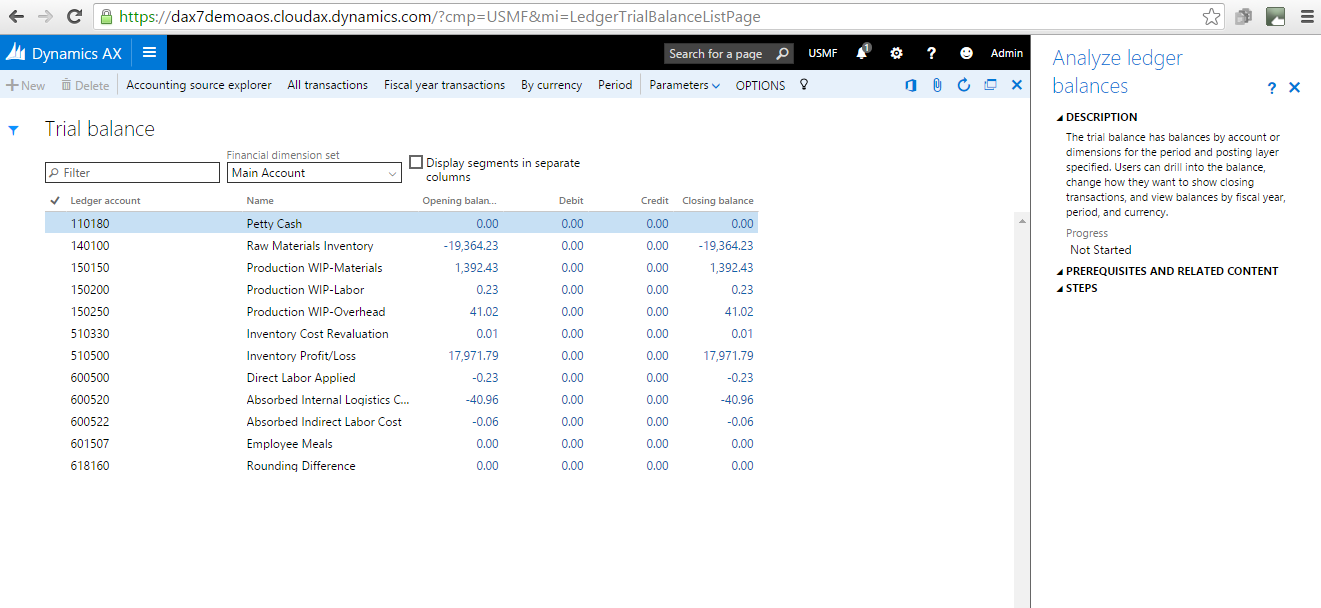
After the link is established, users can see help descriptions and steps directly within the application.